


In this section you can configure some settings that affect how Finder is displayed in your shop. Please note that changes may take up to 5 minutes to be reflected due to Finder’s caching system.
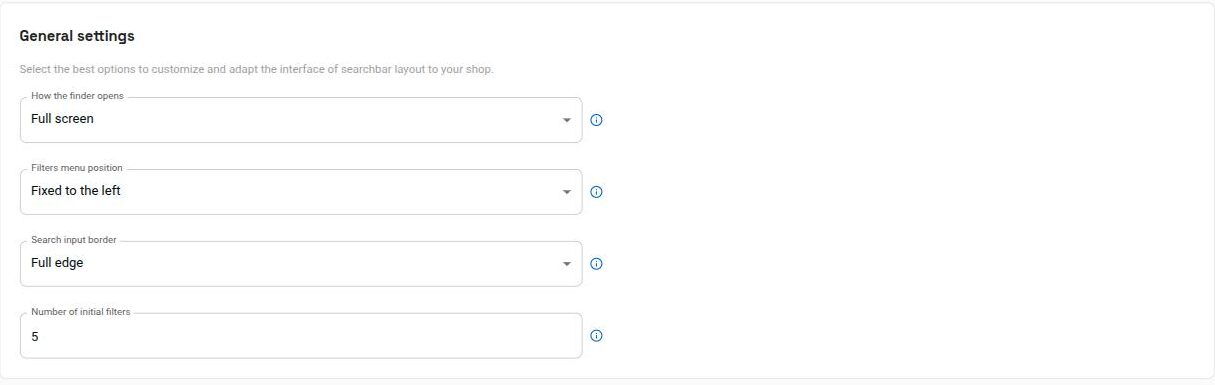
General settings #
Configure here how the finder opens, the position of the filters menu, the border type for the search box, and the number of facets shown after the initial search. The finder can open in full screen, in a floating window, or in a dropdown panel.
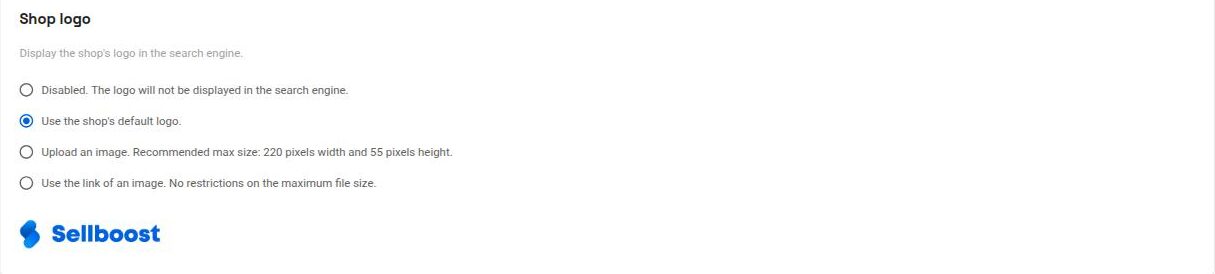
Shop logo #
In this section you can set up a logo to appear at the top of Finder. You can choose not to show any logo, use the shop’s default logo, upload your own image, or use the link to an image.
Search configuration #
Configure here the delay time between when the user stops typing and the search is performed. You can also configure the minimum number of characters that must be typed before the search is performed. These options are important if you want greater control over when Finder should perform the search in relation to what users type in the search bar.

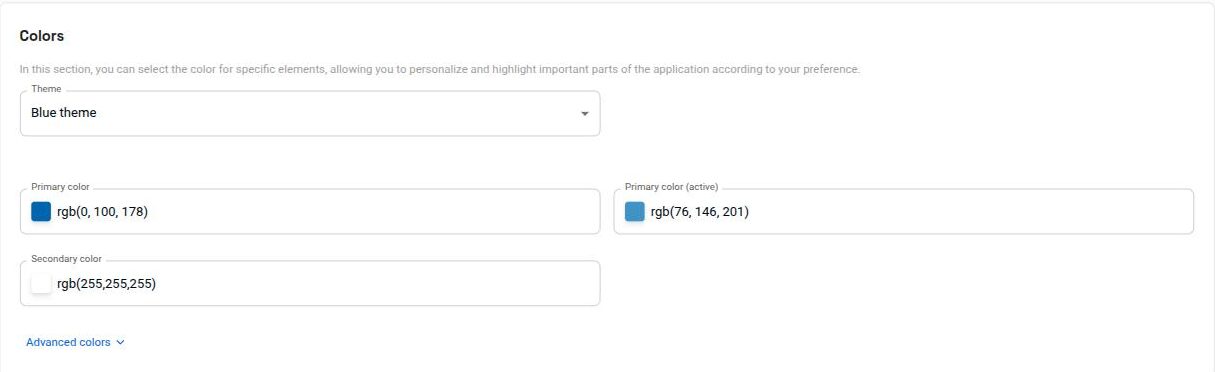
Colors #
In this section you can configure the colour of a wide range of Finder elements so they better match your shop’s design. You can choose one of the predefined themes or customise the primary colour, the active primary colour, and the secondary colour. Under “Advanced colors” you can also adjust the text, background, and border colour of the product status labels (discount, in stock, out of stock, and available on request), among other elements.
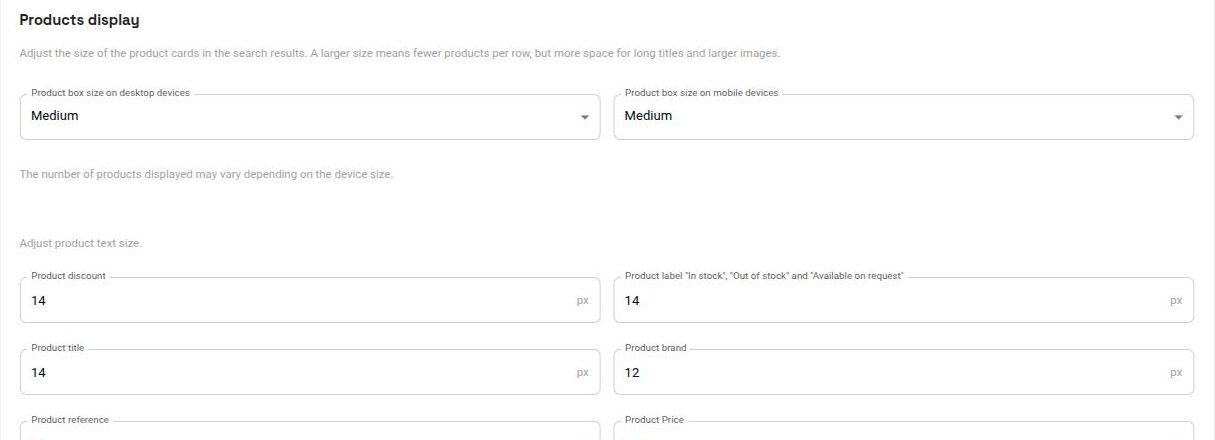
Products display #
Adjust the size of the box where each product is placed when showing results, independently for desktop and mobile devices. The larger the box, the fewer products will be shown per row in the results, but there will be more space for long product titles and the images will appear larger. You can also adjust the text size of the products (discount, labels, title, brand, reference, and price).
Product fields #
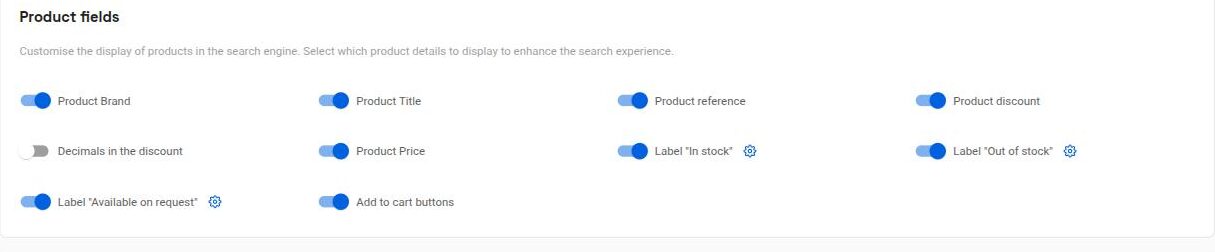
Customise the display of products in the finder. Select the product details you want to show to enhance the search experience: brand, title, reference, discount (with or without decimals), price, and the availability labels.
Shopping cart and quick view #
Display the shopping cart in the finder and an “Add to cart” button on each product. Quick view is a window that lets customers choose a product’s variant (size, color, etc.) before adding it to the cart: you can disable it, activate it only for products with variants, or keep it always active.
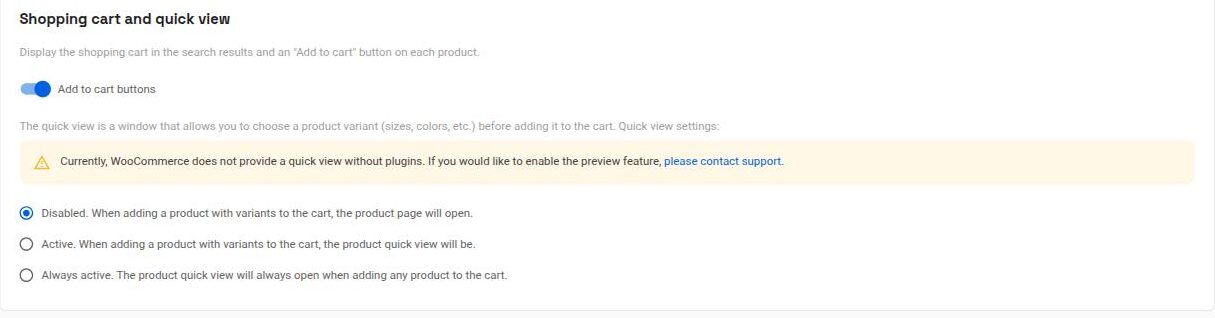
The quick view feature utilises functionality already available in your shop. In PrestaShop, most themes include it as standard, so you don’t need to install anything else. WooCommerce, on the other hand, does not include quick view unless a plugin is installed. Finder is compatible with Addonify – Quick View for WooCommerce. If you wish to enable quick view in your WooCommerce shop, please contact support.
Currencies #
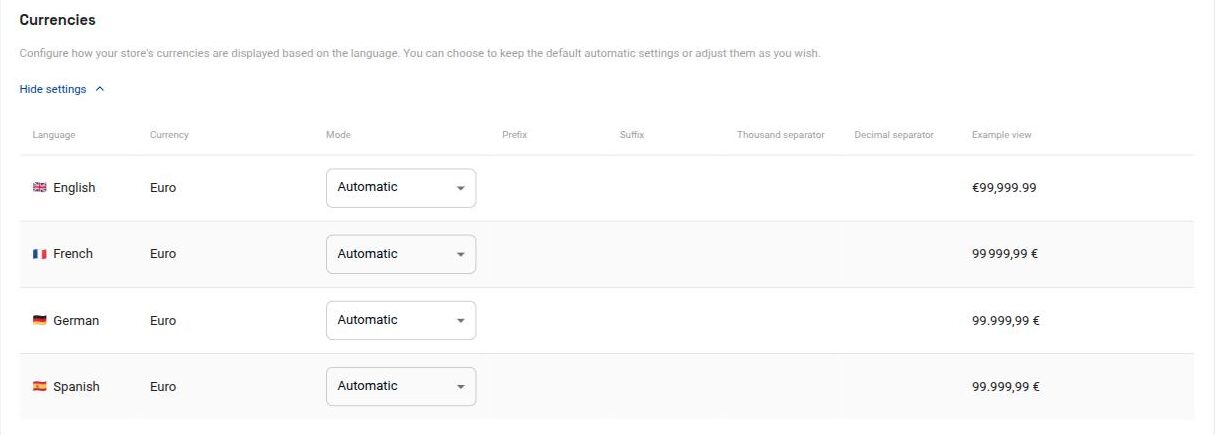
In this section you can configure how prices are displayed in Finder’s results by customising the prefix, suffix, thousands separator, and decimal separator. This configuration can be set per language.
Custom CSS #
Here you can enter CSS code to customise the appearance of Finder. The code will be loaded after Finder is loaded in your shop.



