


In the Finder Insights section you can see how your shop’s customers use the search engine: what they search for, what they find, which products they click on and how many of those searches end up in carts and orders. All the data shown comes exclusively from Finder: it does not come from Google Analytics or any other analytics tool in your shop.
The section is divided into three tabs: Summary, Searches and clicks and Products. In addition, the Finder Dashboard shows a summary of the last 30 days with the conversion funnel and the profitability of the service.
Where does the data come from? #
Finder automatically records customer activity inside the search engine:
- Searches: every time a customer types in the search engine and results are shown.
- Clicks: every time a customer clicks on a product in the results. If the product is added to the cart directly from Finder, it also counts as a click.
- Carts and orders: the Sellboost module installed in your shop detects when a product the customer clicked on in Finder is added to the cart and, later, whether that cart turns into an order. This information is synchronised with Sellboost periodically.
So that the data only reflects the real activity of your customers, the following are not recorded: searches made from the Sellboost dashboard (for example, from the preview), searches made with test mode enabled or while logged in as an administrator in the shop, and searches coming from the IPs excluded from statistics that you can configure in the security section of your shop.
Insights are recalculated every hour, so data for the current day is partial. Carts and orders may take a few more hours to appear, as they depend on the data synchronisation with your shop.
Filters #
At the top you can choose the Date range you want to analyse (the last 30 days by default), the Language of the searches and the period you want to Compare with: the previous period (the same number of days immediately before) or the same period of the previous year. If you have several shops, you can also filter by shop.
The Searches and clicks and Products tabs also show a limit selector (Searched terms limit or Clicked products limit) that sets how many terms or products are analysed in detail. The rest are grouped in a totals row.

Summary #
The Summary tab shows the main indicators for the selected period. Next to each value you will see the change compared with the comparison period, and the (i) button in each box briefly explains the figure.
- Sessions: number of customers who have used the search engine. A session starts when a customer uses Finder and ends after one hour of inactivity; if they search again later, it counts as a new session. Sessions allow us to group all the searches made by the same customer.
- Searches: total number of searches made in Finder. While the customer is typing, Finder discards the intermediate searches: if someone types “red”, “red sho” and “red shoes”, only “red shoes” is counted. The same applies when moving to another page or applying filters to the same search.
- Clicks: total number of clicks on products in the search results.
- Click Through Rate: clicks divided by searches. It can exceed 100 % if customers click on several products from the same search.
- Carts: shop carts containing at least one product the customer clicked on in Finder.
- Orders: orders placed from those carts.
- Sales: amount of those orders. The order total is taken into account (including taxes and shipping costs), not just the products clicked on in Finder. Only orders placed in the shop’s default currency are counted.
- Conversion rate: orders divided by sessions, that is, the percentage of customers using the search engine who end up buying.

Cart, order and sales tracking is available for Prestashop and WooCommerce shops with an up-to-date Finder module.
Evolution over time #
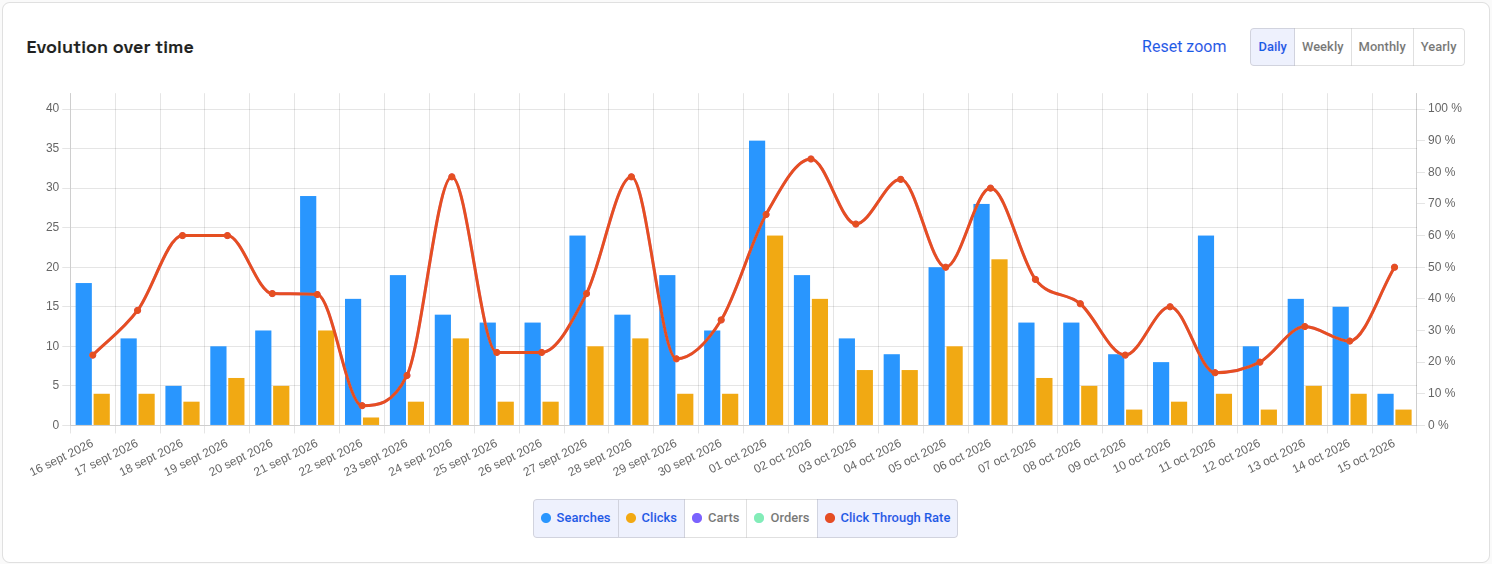
Below the indicators, this chart shows how searches, clicks, carts, orders and the click through rate evolve over the period. You can group the data by day, week, month or year, and show or hide each metric by clicking its name in the legend. You can also select an area of the chart to zoom in and return to the full view with Reset zoom.
Searches and clicks #
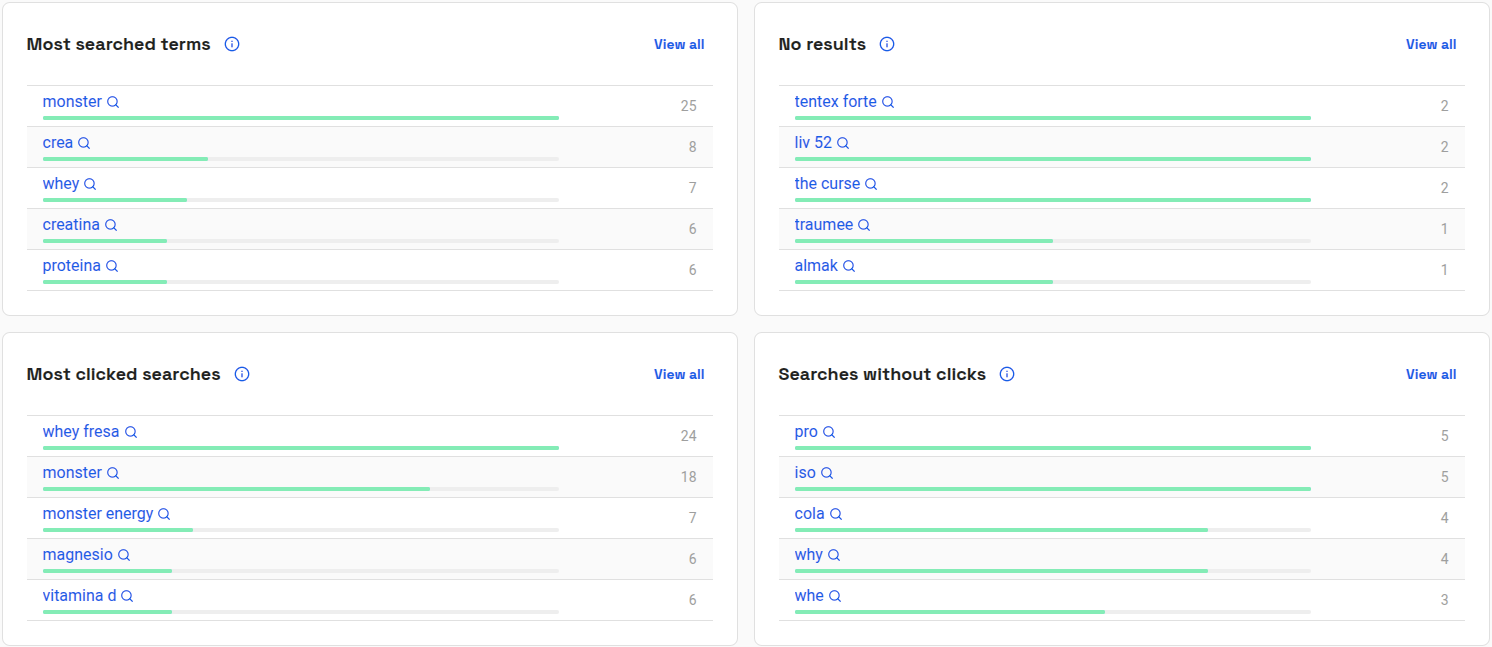
In this tab you can see what your customers search for and how they respond to the results. Four lists are shown with the top five terms of each:
- Most searched terms: the most searched terms that have shown results.
- No results: searches for which Finder has not shown any product.
- Most clicked searches: the searches whose results have received the most clicks.
- Searches without clicks: searches that have shown results but where the customer has not clicked on any product.
The No results and Searches without clicks lists are the most useful for improving the search engine: they usually point to products you do not sell, terms your customers write differently or results that are not relevant enough. You can improve them by adding Synonyms or rules in Customize results.
Clicking on a term shows you the results Finder displays for that search.
Insights details #
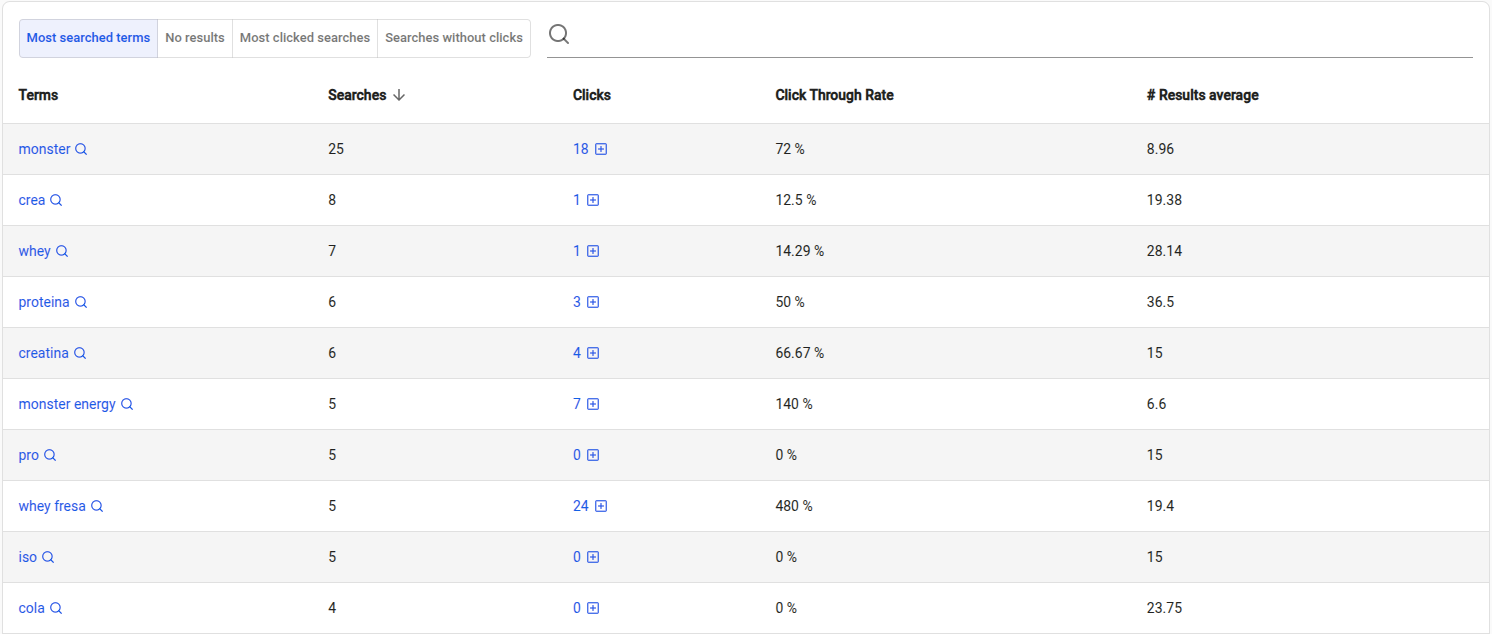
The View all button of each list takes you to the full table, where you can search for a specific term, sort by any column and switch between the different lists. For each term it shows:
- Searches: number of times it has been searched.
- Clicks: clicks on the results for that term. Clicking on the number shows which products were clicked.
- Click Through Rate: clicks divided by searches.
- # Results average: average number of products shown on the results page for that search.
Terms outside the selected limit are grouped at the end of the table under Rest of the searches, with their totals. If you want to analyse more terms, increase the Searched terms limit.
Products #
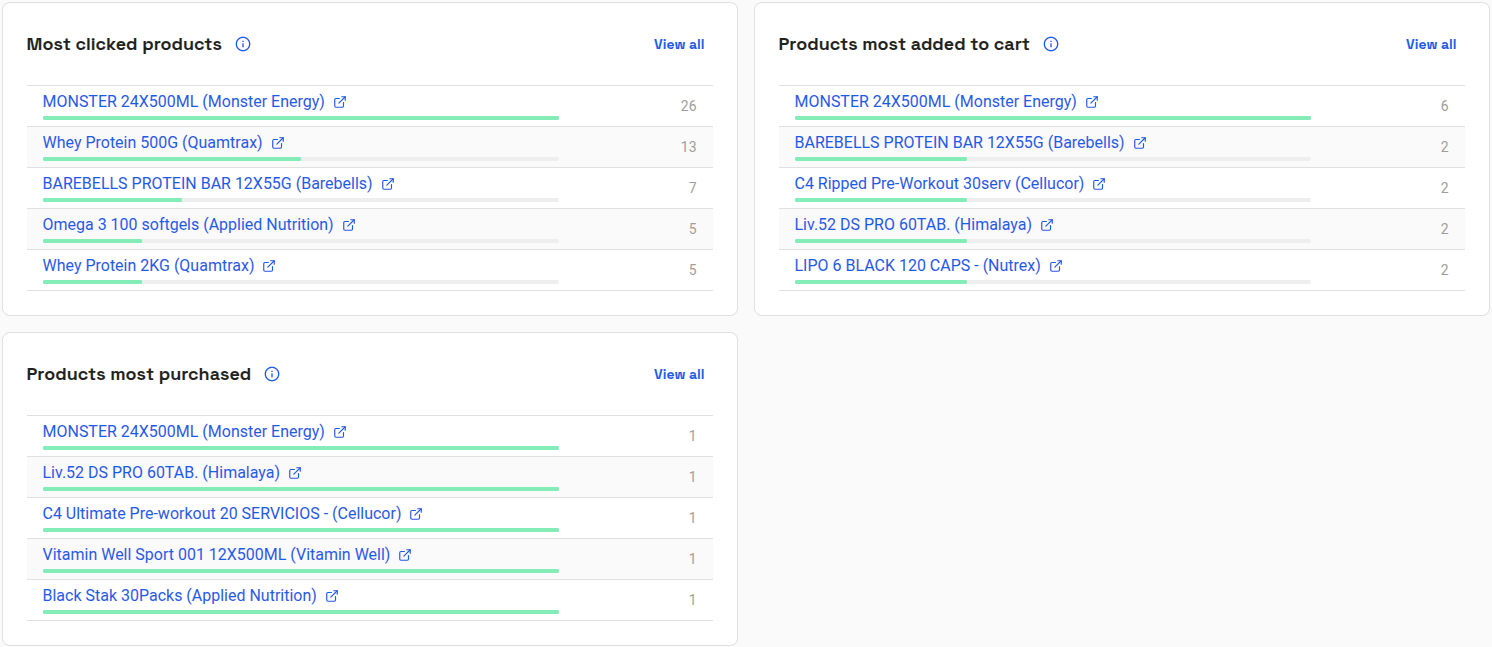
This tab shows which products generate the most interest through Finder:
- Most clicked products: the products that have received the most clicks in the search results.
- Products most added to cart: the products most often added to the cart after a search.
- Products most purchased: the products most often bought after a search.
Clicking on a product name opens its page in your shop. With View all you access the full table with the total clicks, carts and orders for each product, and you can expand each row to see which search terms led customers to it.
Conversion funnel #
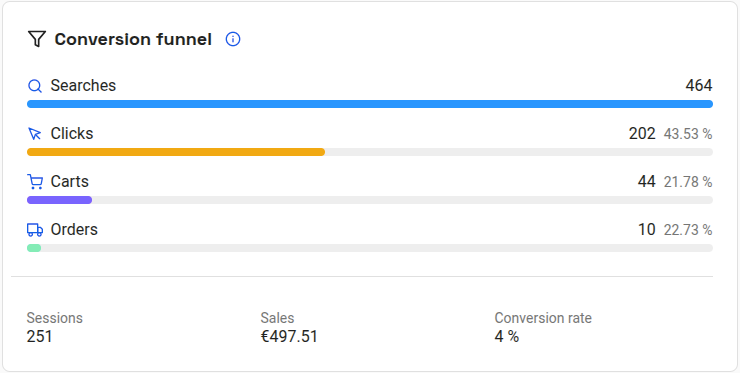
In the Finder Dashboard, the Insights block shows the conversion funnel for the last 30 days. The funnel covers the stages a customer using the search engine goes through: Searches → Clicks → Carts → Orders.
The percentage of each stage is calculated against the stage immediately above it:
- Clicks: clicks divided by searches (the click through rate).
- Carts: carts divided by clicks.
- Orders: orders divided by carts.
This is why a percentage can exceed 100 %, for example when a single search produces several clicks. The bottom of the card shows the sessions, sales and conversion rate for the period. The View insights link takes you to the full section.
Profitability #
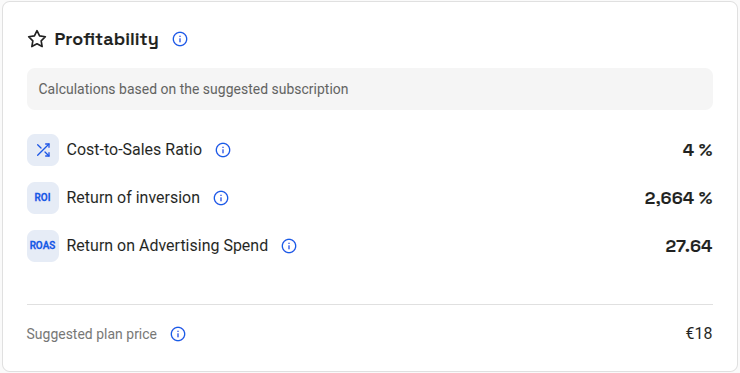
Next to the funnel, the Profitability block compares the cost of your Finder subscription with the sales it has generated in the last 30 days:
- Cost-to-Sales Ratio: percentage that the plan price represents over the sales generated by Finder.
- Return on investment (ROI): how much is earned relative to the amount invested, that is, (sales − cost) / cost.
- Return on Advertising Spend (ROAS): sales generated for each euro invested in Finder.
If you do not have a paid plan yet, the calculations are based on the suggested plan according to your request history. If there are not enough orders in the period, the profitability calculation is not shown.
Why doesn’t my data match other tools? #
It is normal for Finder figures not to match other sources exactly:
- Subscription requests: the number of searches does not match the requests shown in the subscription Dashboard. Requests include any call to the search engine (intermediate searches while typing, suggestions, filters, pagination…), whereas insights only count relevant searches.
- Google Analytics: Google Analytics measures visits and conversions across the whole website, with its own session and attribution rules. Finder only measures activity inside the search engine and the carts and orders containing products clicked on in Finder.
- Shop sales: Finder sales only correspond to orders attributed to the search engine, even though the full amount of each order is counted. Orders in a currency other than the shop’s default currency are not counted.
- Devices and cookies: tracking takes place in the customer’s browser. If the customer blocks cookies, changes device or takes more than an hour between the click and adding the product to the cart, that cart is not attributed to Finder.


