

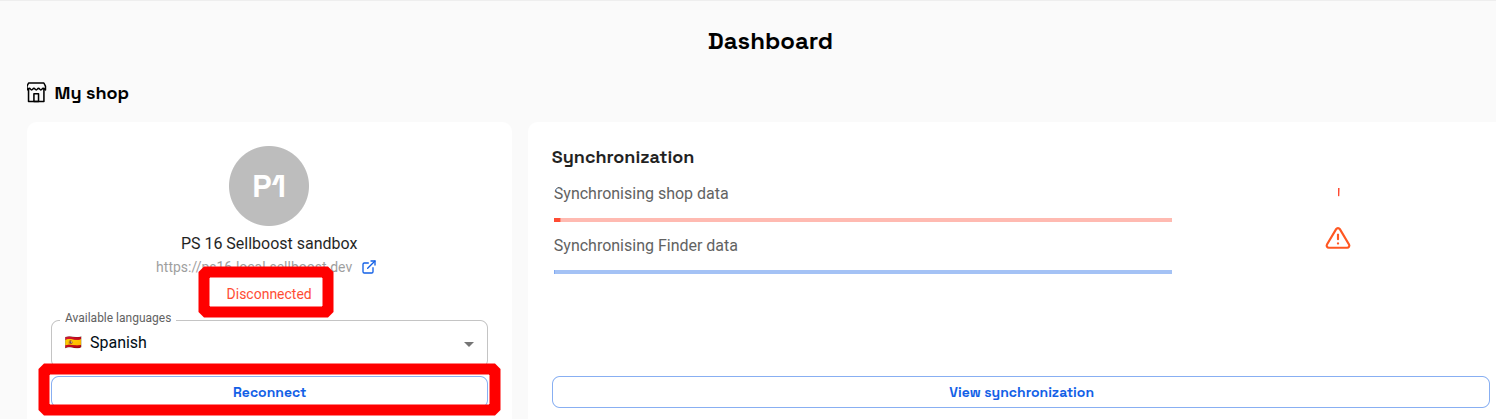
There are several reasons why Sellboost may not be able to connect to your shop. You can view the connection status in the Dashboard section of the Shop menu.
Below, we explain the reasons why this disconnection may occur and how you can fix it.
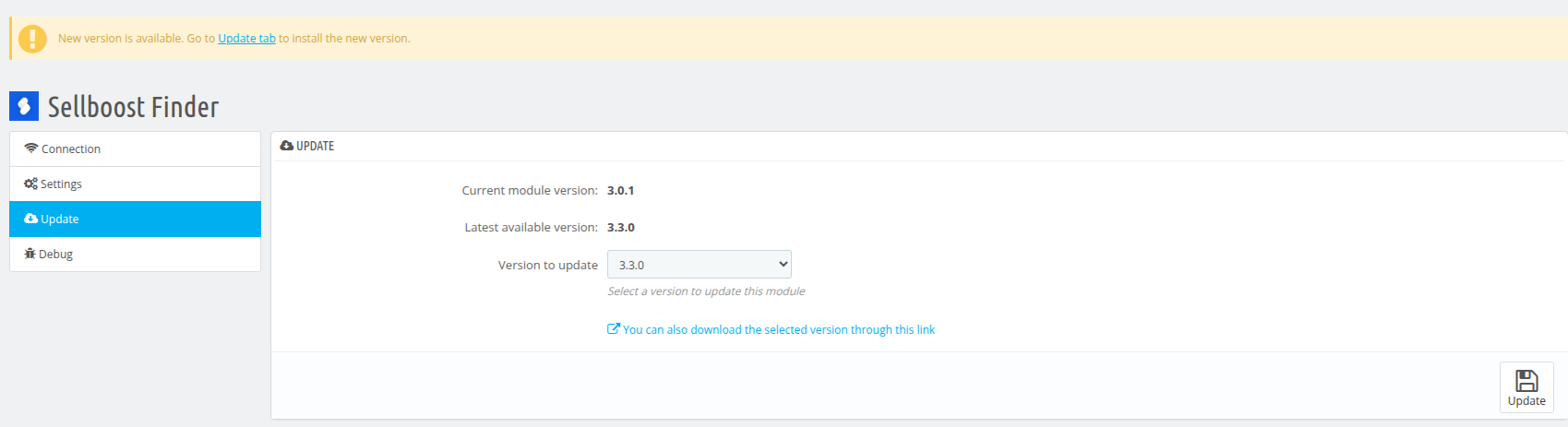
- The Sellboost Finder module is uninstalled or deactivated. The Sellboost Finder module must be installed and activated. You can also check if there are any updates for the module. It is recommended to keep it updated to the latest stable version available.

- The shop is on a private network or installed locally. Your shop must be accessible via the internet in order to connect to Sellboost. If your shop is installed in a local environment or on a test server without external access, connection will not be possible.
- You are using Cloudflare, a firewall, or a similar security system. You can disable this security and click the ‘Reconnect’ button in Sellboost to check if this is the problem. You can add the IPs 54.195.90.200 and 52.210.146.179 to the application’s allowlist so that our system can connect to your store. You can also add a rule to allow all connections to the store that contain the text “sellboost” in the URL.
- The shop’s URL or domain has changed. If, after installing the module and connecting the shop to Sellboost, the shop’s URL has changed (e.g. domain change, migration from test environment to final environment, etc.), you must contact Sellboost support to resolve the issue, providing the new shop URL.
- Your Prestashop store has been migrated. Sometimes when migrating a store in Prestashop, a new installation is performed, content is migrated, and modules are reinstalled. If this is the case for you, the module’s API key will have changed and you will need to insert it again by following these steps:
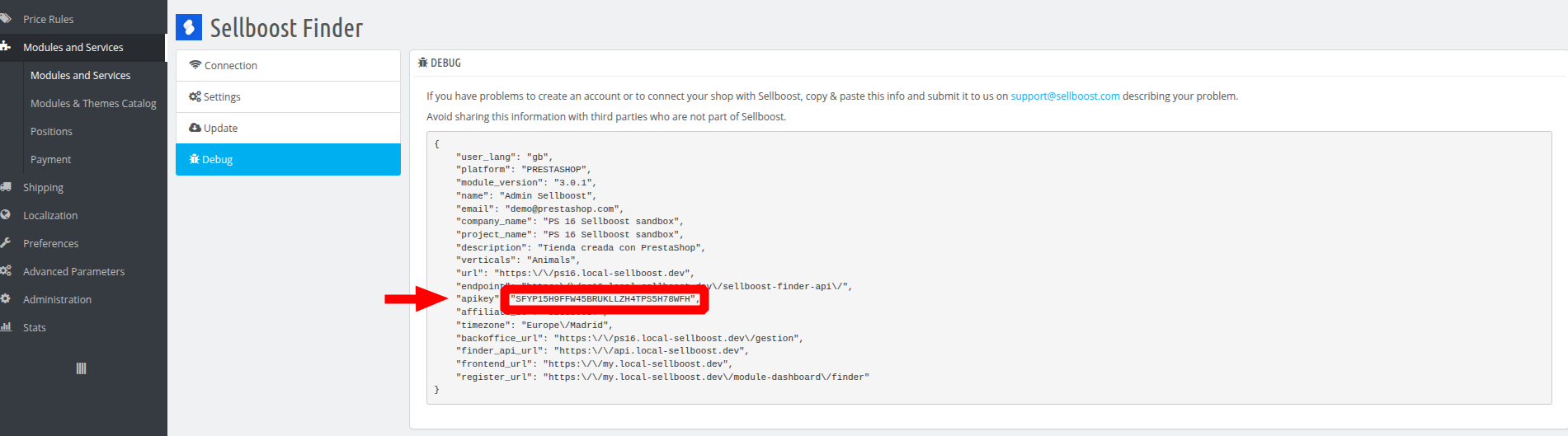
1. Obtain the new API key in the Debugging section of the module.

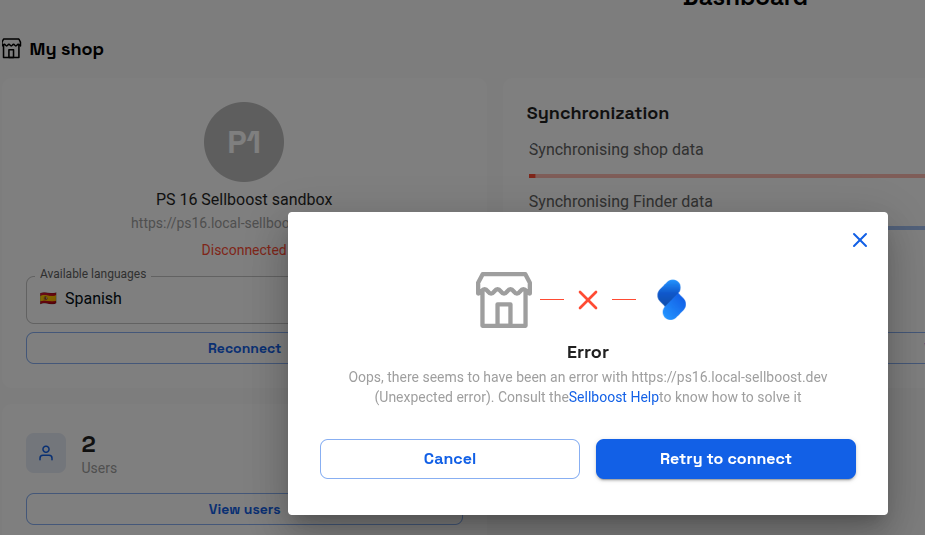
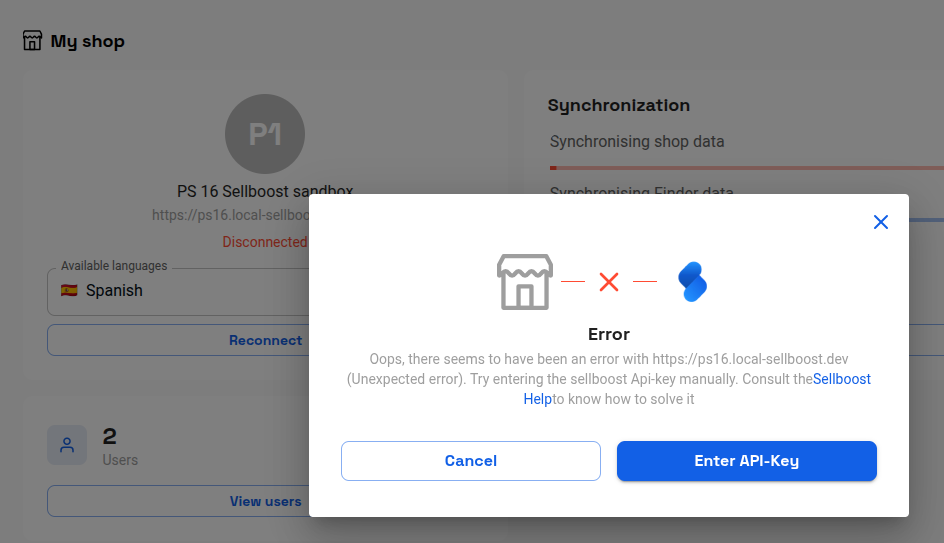
2. Go to Sellboost and click the Reconnect button in the Dashboard section of the Shop menu. This will open a pop-up window with a button to retry the connection. When you click this button and confirm the problem, you will be given the option to change the API key.


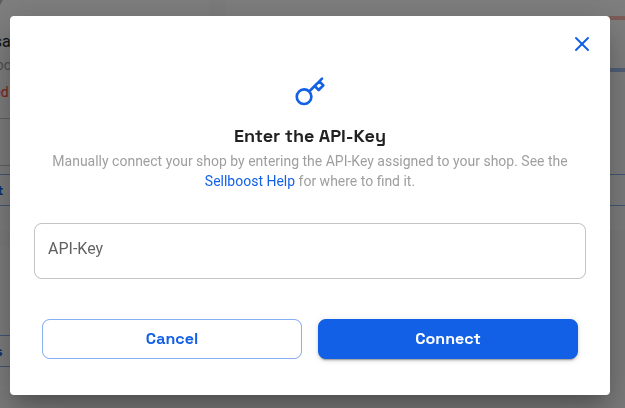
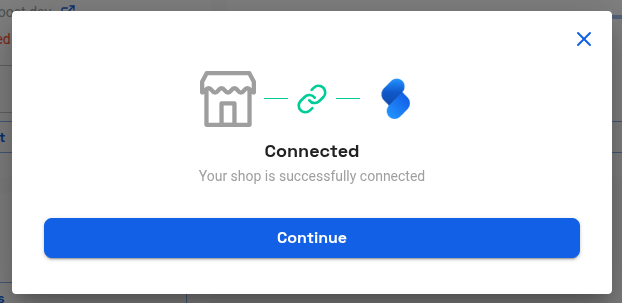
3. Enter the new API key and press the connect button. If the problem is resolved, you should see a new pop-up confirming that the shop is connected to Sellboost.


If none of the solutions mentioned here resolve the connection issue with your shop, please do not hesitate to contact our support team and one of our technicians will thoroughly review the problem.
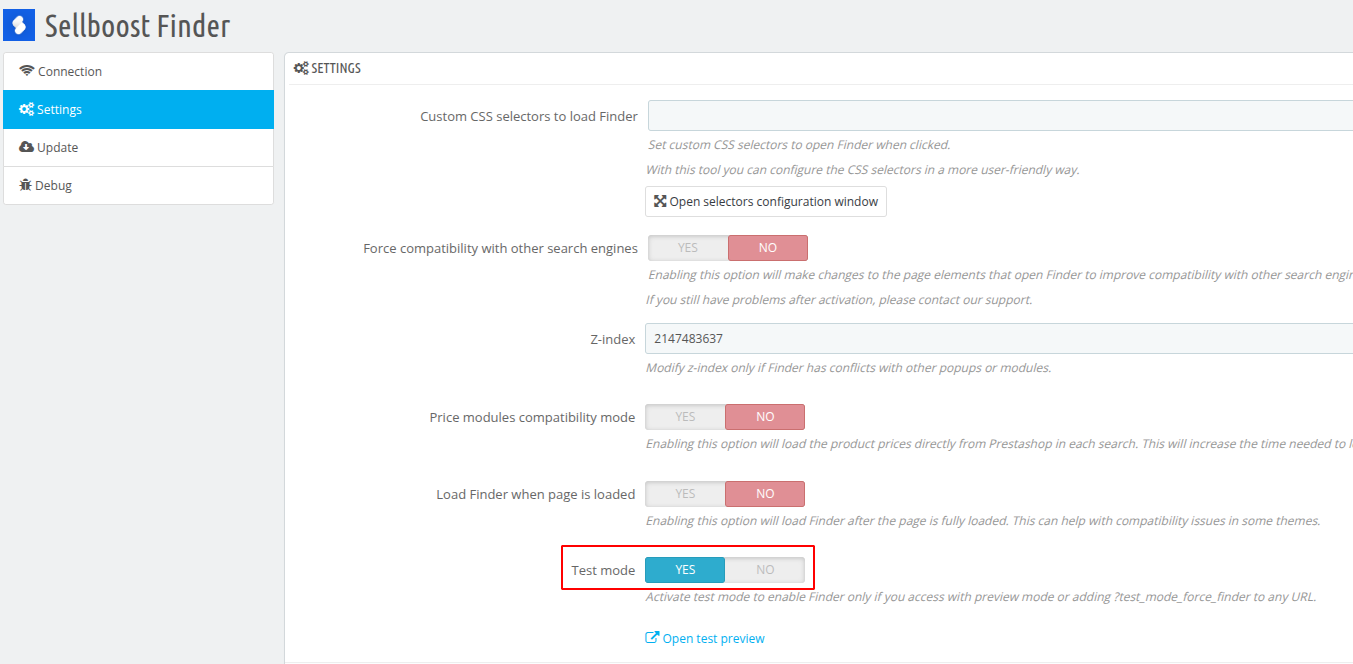
It is very important that during a connection problem you do not deactivate the Sellboost Finder module in your shop so that we can carry out the review. Instead, you can activate test mode. This way, Finder will not be displayed in the shop for customers, but our technical team will be able to carry out the necessary checks to detect the problem.