

Although the general configuration of Finder is carried out from Sellboost, there are some settings in the PrestaShop module and in the WordPress plugin that help integrate Finder with your online shop. Both include the same options.
Where to find the settings #
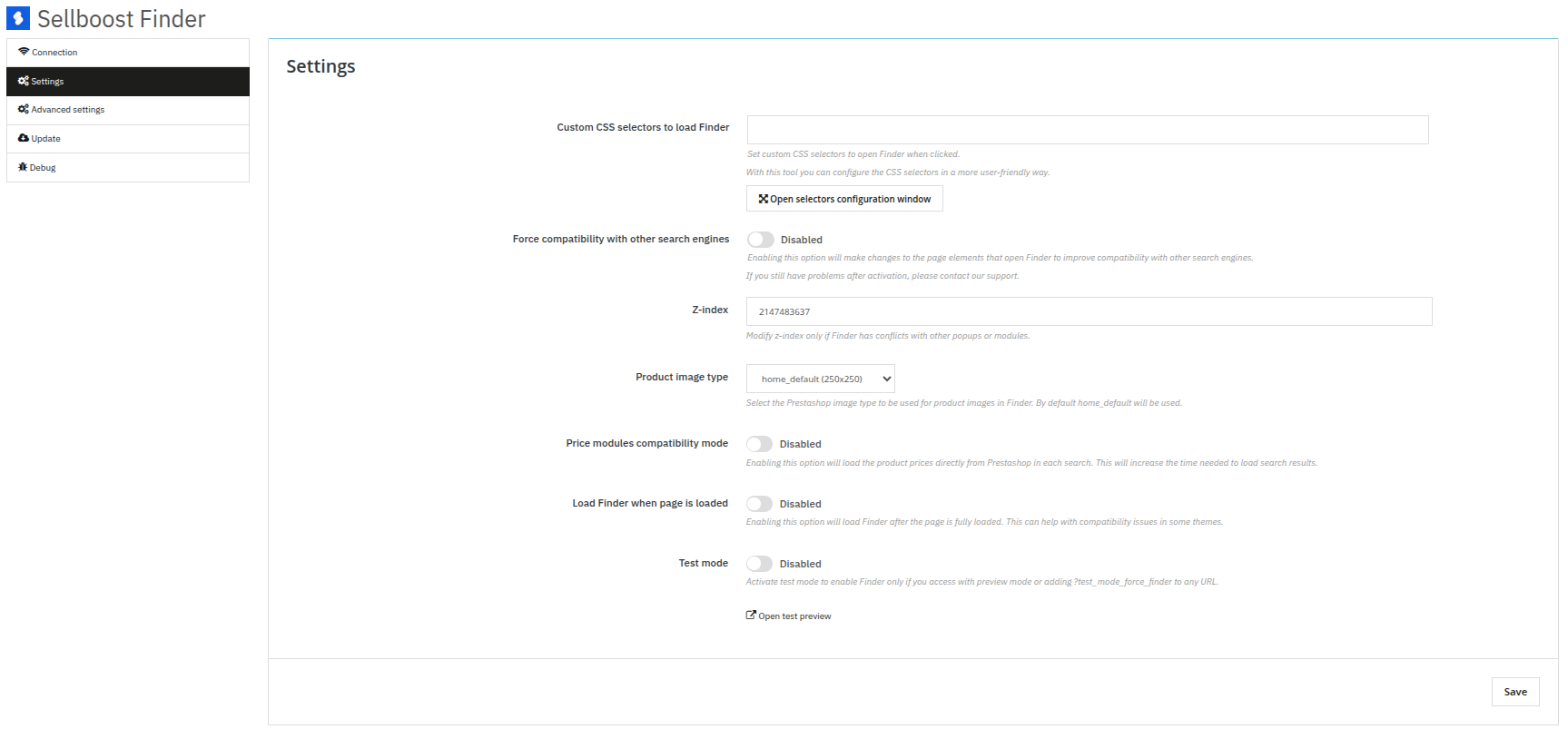
PrestaShop: in the back office, go to Modules → Module Manager, search for Sellboost Finder and click Configure. The options are in the Settings tab.
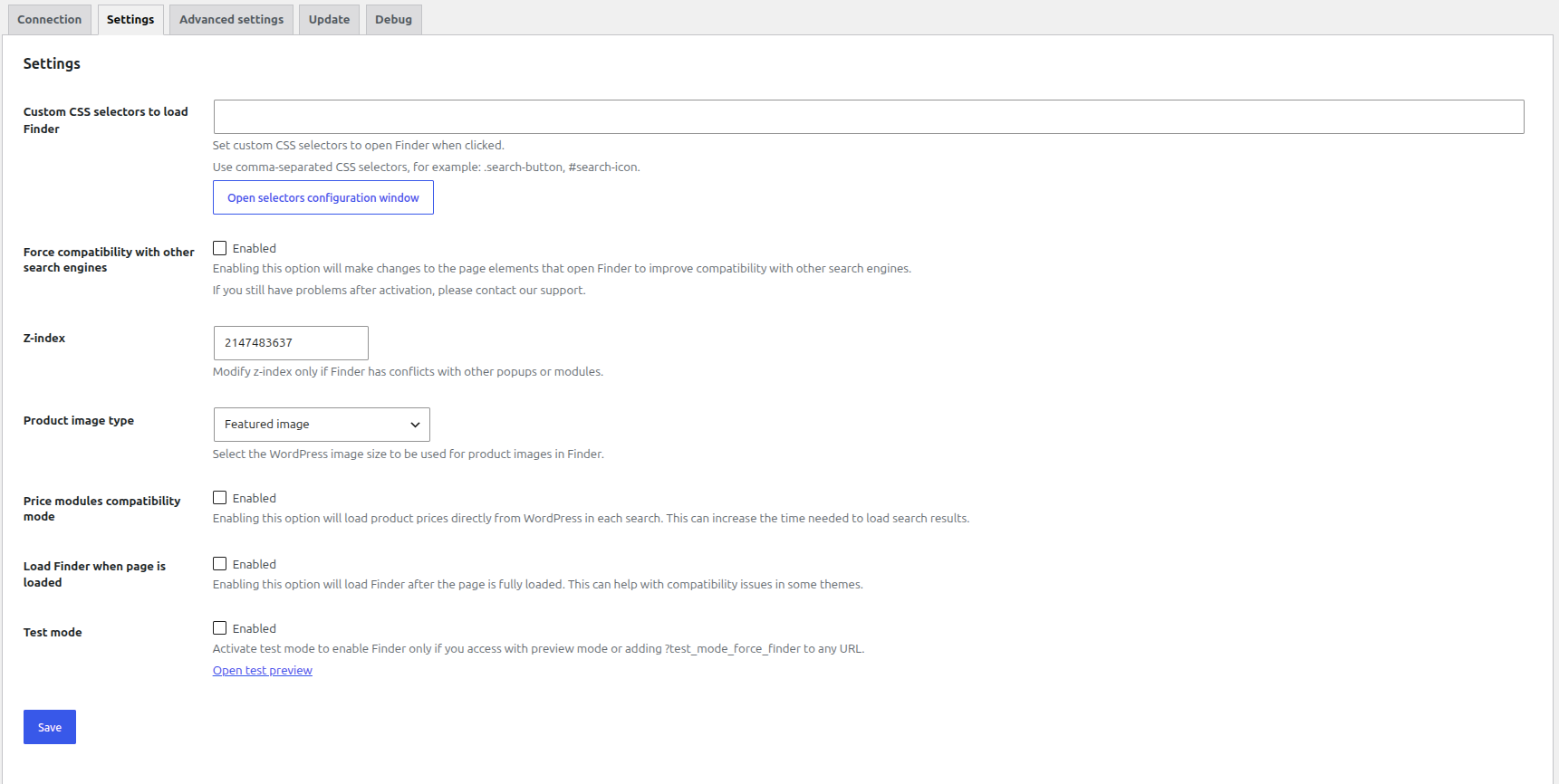
WooCommerce: in the WordPress admin panel, go to Tools → Sellboost Finder. The options are in the Settings tab.
After changing any option, remember to click Save.
Custom CSS selectors to load Finder #
If clicking on the shop’s search box does not open Finder, this field must be filled in with the selector of each search field in the shop. If there are several, separate them with commas.
These selectors must be compatible with the querySelectorAll function and have a valid CSS selector format.
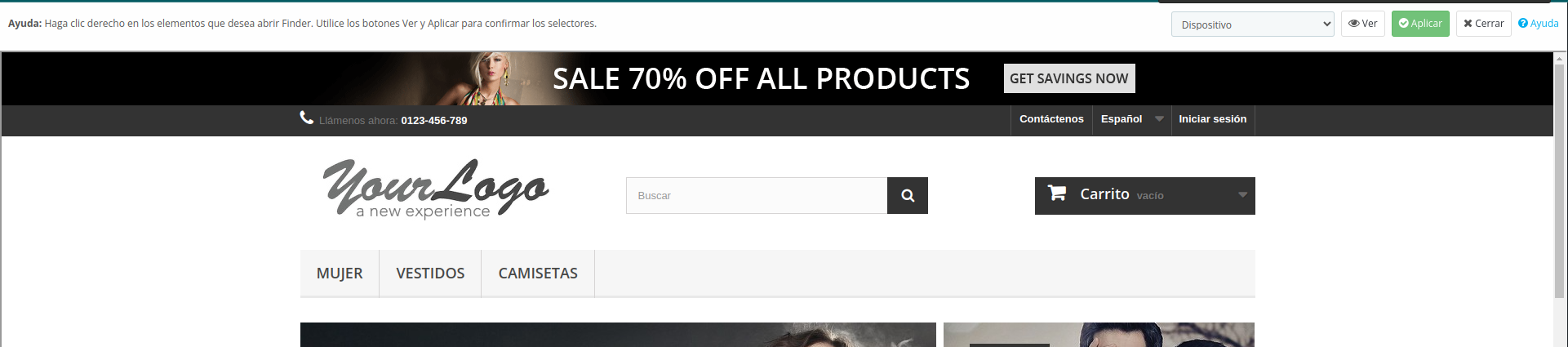
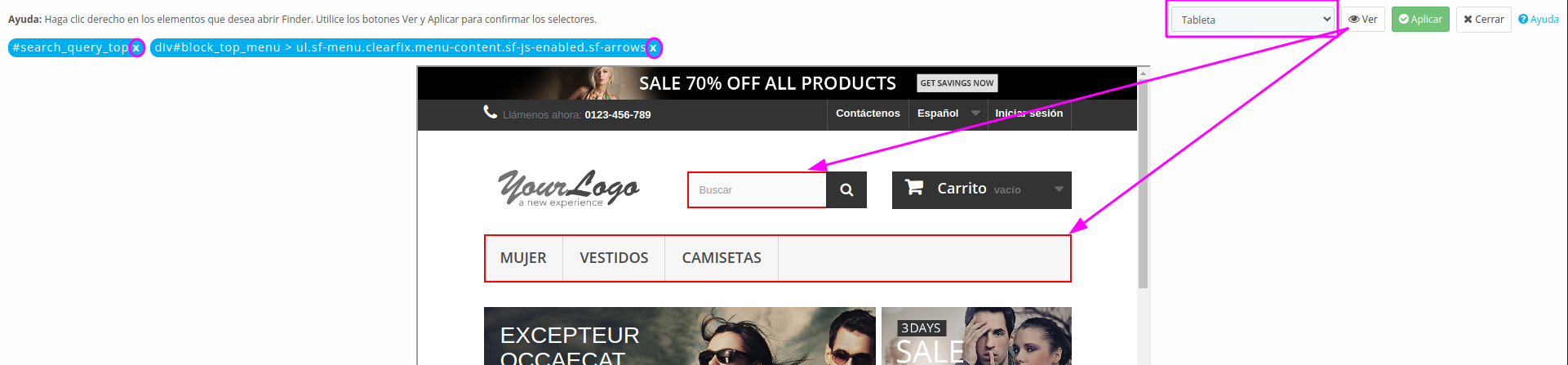
If you don’t have technical knowledge, you can use the “Open selectors configuration window” button to add the selectors by following these steps. The window works the same way in PrestaShop and in WordPress:
- Click the button and a window with your shop will open to help you select the elements that, when clicked, will open Finder.

- Right-click on the elements that should open Finder and you will see their selectors at the top.

- You can change the view type in the “Device” drop-down, which is recommended if there are elements that are only displayed on mobile, for example, and use the “View” button to highlight in red all the elements already selected. You can also remove elements by clicking on the “x” of each one at the top.

- Click “Apply” so that the selectors field is filled in automatically with the selected elements. After saving the settings, Finder should open correctly.



Force compatibility with other search engines #
If clicking on the shop’s search box opens Finder together with other elements, such as the search engine included in the shop’s theme, we recommend enabling this option. When enabled, changes will be made to the page elements that open Finder to improve compatibility with other search engines.
Z-index #
If other elements of the shop (menu, banners, etc.) overlap Finder when it opens, this value must be changed. The higher the value, the higher Finder will be placed above the rest of the elements. The default value is always the maximum possible: 2147483637.
Product image type #
Lets you choose the image size Finder uses for products in the results. The drop-down shows the sizes available in your shop:
- PrestaShop: the image types configured in your shop. home_default is used by default.
- WooCommerce: the image sizes registered in WordPress. The Featured image is used by default.
Price modules compatibility mode #
If the products in Finder’s search results show incorrect prices, this option must be enabled so that the prices are requested directly from the shop. We recommend enabling it especially when the shop has a module or plugin installed to manage prices, discounts, specific prices, etc., and therefore the native system that PrestaShop or WooCommerce include for managing these elements is not used.
When this option is enabled, product prices will be loaded directly from your shop on every search. This will increase the time needed to load the search results. You can find more information in The prices shown in Finder don’t match my shop’s prices.
Load Finder when page is loaded #
Enable this option so that Finder loads after the page has fully loaded. This can help with compatibility issues in some themes.
Test mode #
Enable test mode so that Finder is not available to the shop’s customers while you are testing. To see it and test it, access your shop through the special “Open test preview” link.
Advanced settings #
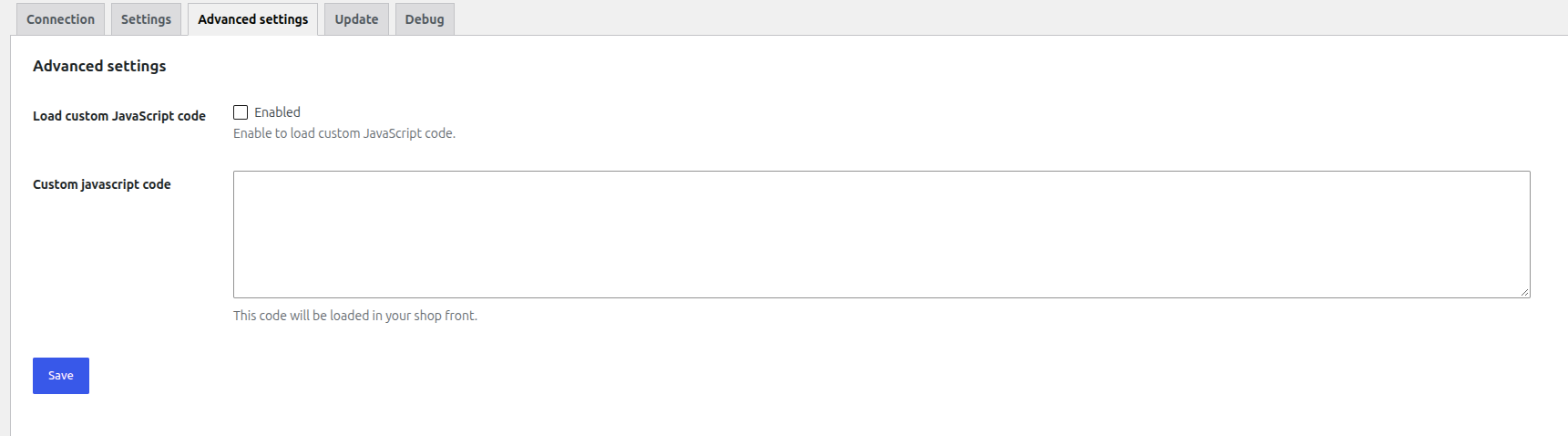
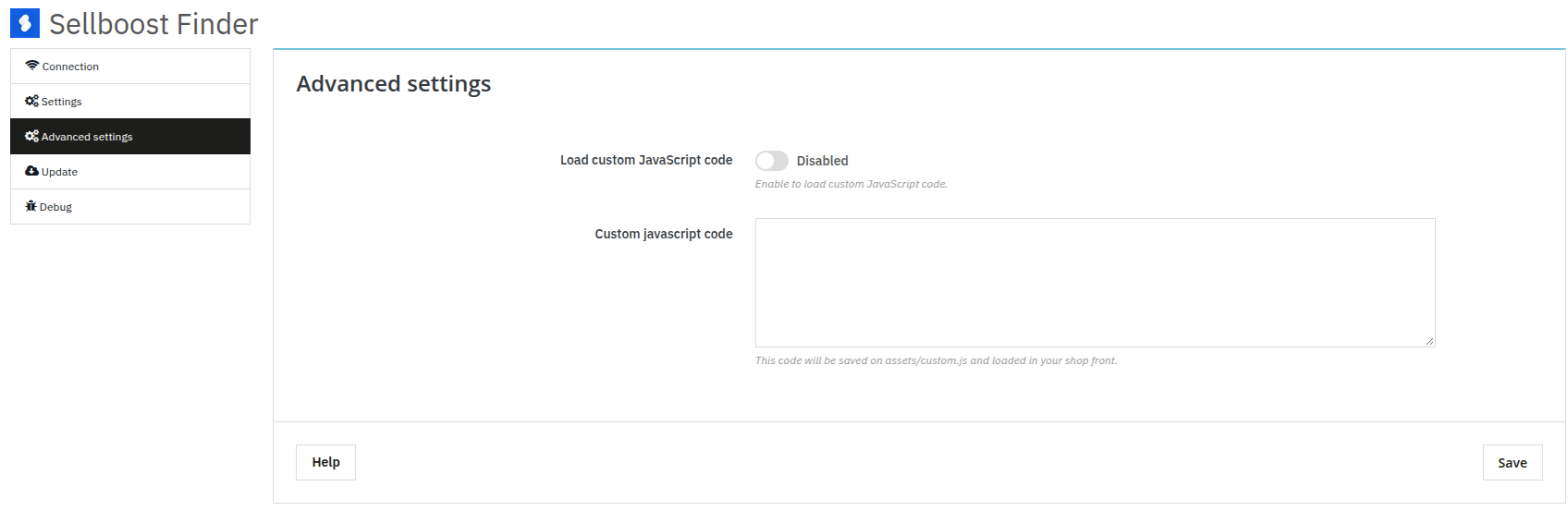
In the Advanced settings tab you can add your own JavaScript code, which will be loaded on your shop’s pages. It is used to customise Finder’s behaviour through its events and actions, which are explained with examples in Javascript.
- Load custom JavaScript code: enables or disables loading the code in your shop. If you disable it, the code is kept but is no longer loaded.
- Custom javascript code: the code you want to load. In PrestaShop it is saved in the module’s assets/custom.js file.
An error in this code can affect how your shop works, so only use this option if you have technical knowledge or if our support team tells you to.
PrestaShop:
WooCommerce: